
 whatsminer
 2025.05.26
 3K+
3K+ 0
0

1. What can WhatsMinerTool be used for?
WhatsMinerTool is a software application designed to manage and maintain WhatsMiner miners. It allows users to configure IP addresses, upgrade firmware, control mining operations, adjust performance modes, set up mining pools, troubleshoot errors, and perform remote management tasks. The tool supports advanced features like frequency adjustment, power limit configuration, and real-time monitoring of miner statuses, making it essential for optimizing mining efficiency and stability.
2. What preparations are required before detecting miner IP via WhatsMinerTool?
After starting a miner, long press "IP Found" button on a control board of the miner for a few seconds. Wait for two LED lights to flash, indicating that the miner has broadcast its IP address and MAC address to network.
On a main interface of WhatsMinerTool, click "IP Monitor", and then click "Start" to initiate a function of detecting an IP address of the miner.
At this point, WhatsMinerTool will automatically detect the IP address reported by the miner.
3. How does WhatsMinerTool assist in configuring miner IP address?
3.1 Adding IP Segment
Step 1 Click Miner IP to open a Miner IP Management window.
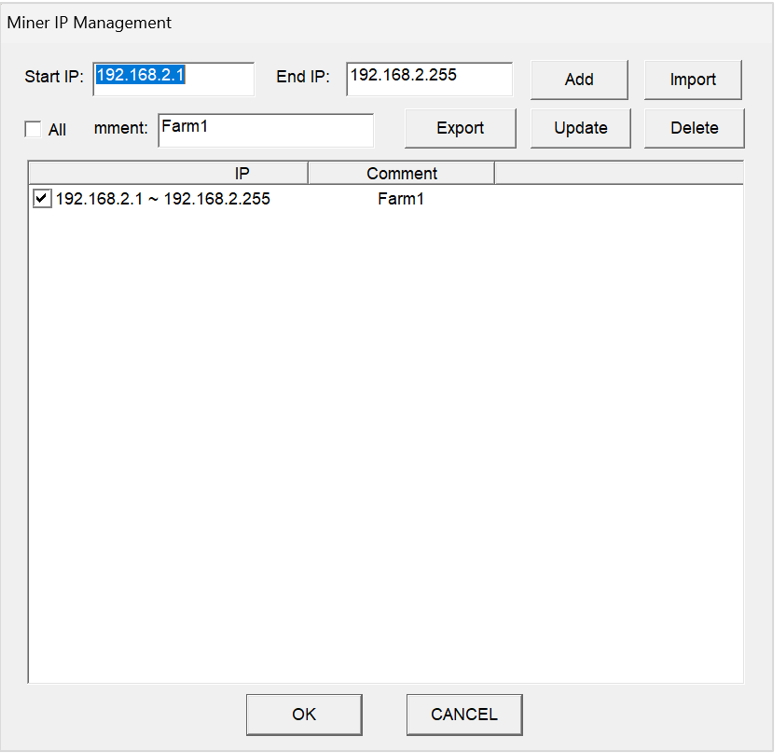
Figure 3-1
Step 2 Enter the corresponding IP segment in Start IP and End IP, and then click Add.
(Optional)Step 3 Select an IP segment, and then click Update or Delete to update or delete the IP segment.
Note:
After the IP segment is selected, there will be a blue background color.
Checking a checkbox to the left of the IP segment indicates that the segment is in a scanning range.
3.2 Importing Miner IP Address
Step 1 Click Miner IP to open a Miner IP Management window.
Step 2 Click Import, select an IP file in a .txt format you want to import in a popup window that appears, and then click Open.
Note: IP addresses must be written in a txt file in a line-by-line format.
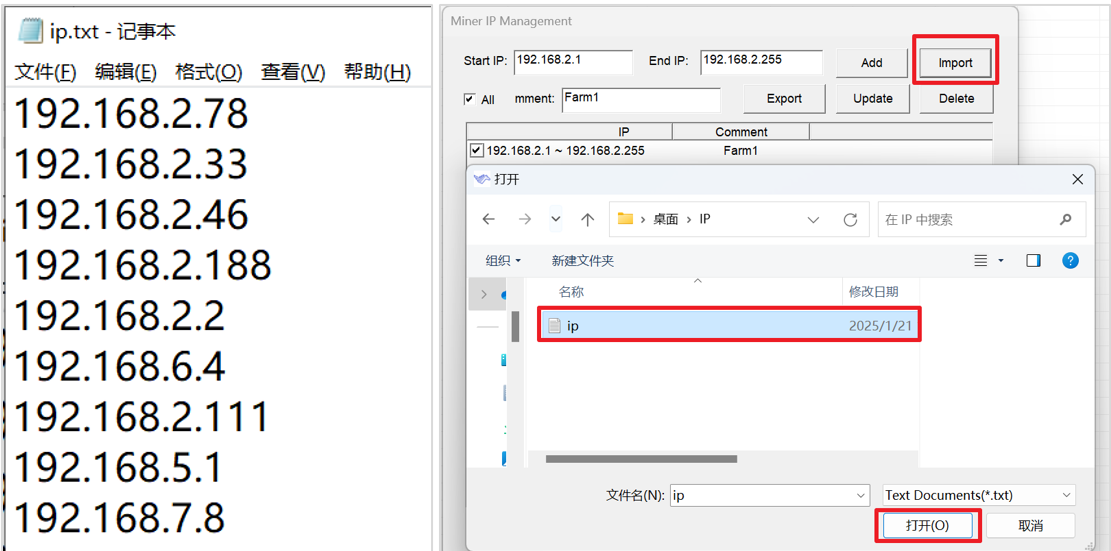
Figure 3-2
4. In WhatsMinerTool, how to configure time zone?
Step 1 Select an IP address of a miner you want to configure its time zone.
You can also select multiple IP addresses of multiple miners.
Step 2 Click Remote Ctrl, click System, click Time Manage, and then click OK.

Figure 4-1
Step 3: After a TimeManage dialogue box pops up, click Set Time Zone, and then click OK.
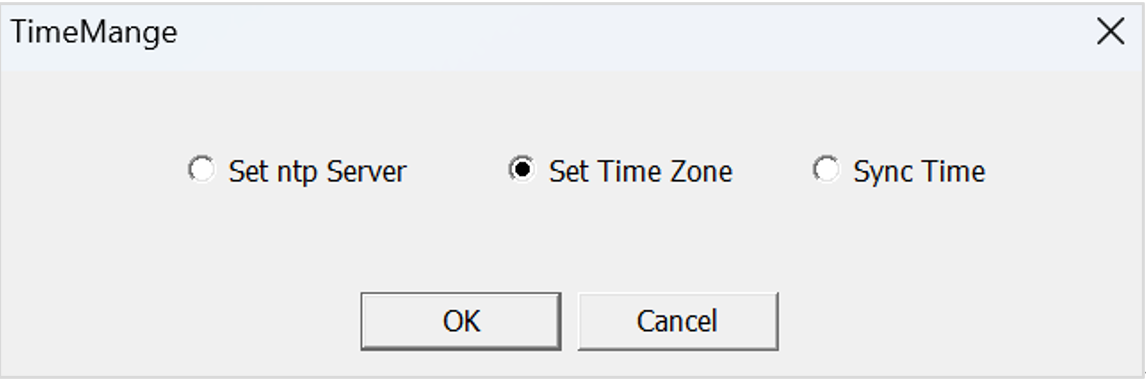
Figure 4-2
Step 4 After a dialog box pops up, you can select a time zone as needed, and then click OK.
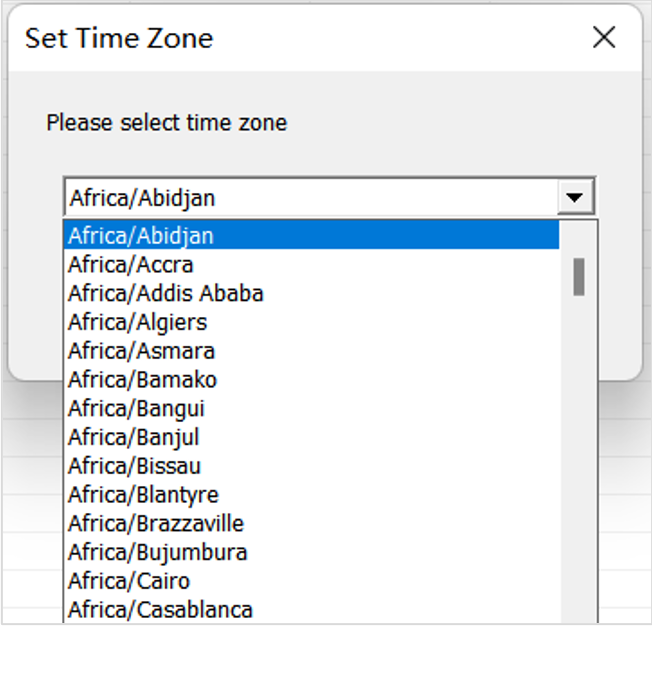
Figure 4-3
5. How to customize WhatsMinerTool interface?
Open WhatsMinerTool, In Setting section, List Column Display Mode offers three views: Compact, Complete, or Custom. The custom mode allows you to select data columns (such as hashrate and power) to display, thereby customizing the interface according to specific operational needs.

Figure 5-1
6. How to configure a static IP address for a miner in WhatsMinerTool?
Step 1: Open a browser on a computer, enter the obtained IP address of a hydro-cooling miner in an address bar, and then enter a username and a password to enter a main page of a backend of a miner.
Step 2: Click Configuration -> Interface, and then click Edit under Actions tab.
Step 3: In an Edit page, select Static address from Protocol, click Switch protocol, and then change an IP address, a mask, a gateway, a broadcast address, and a DNS address to an actual planned address of the miner.
Step 4: Click Save & Apply.
7. In WhatsMinerTool, how to filter miners by status or model?
Users can right-click the Status or Miner Type columns to open filtering options. Status filters include categories like Running, Fault, Shutdown, Success, and Failed. Model filters allow selection based on specific miner hardware versions, such as M63 or M60. This helps users quickly locate miners requiring attention or configuration.
7.1 Filtering by Status
Right-click on any position in a Status column to display a Status popup window, and then you can filter out a miner you want based on its status. Regarding the status of the miner, you can select All, Running, Fault, Shutdown, Success, Failed.
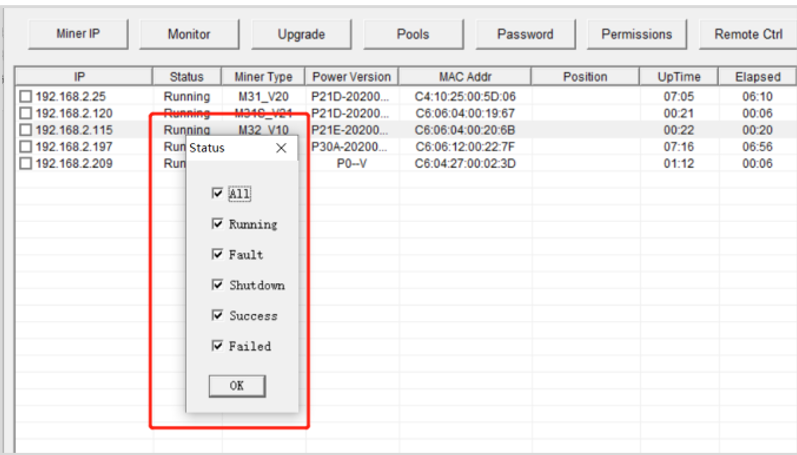
Figure 7-1
7.2 Filtering by Model
Right-click on any position in a Miner Type column to display a Miner Type popup window, and then you can filter out a miner you want based on its type.
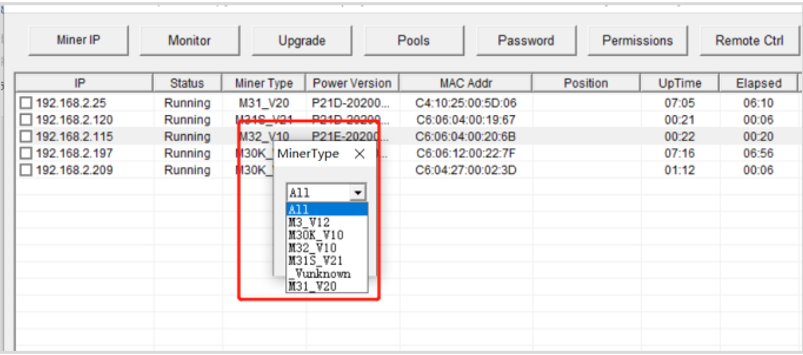
Figure 7-2
8. How can user account permissions be managed in WhatsMinerTool?
The super account has full administrative rights, allowing it to configure permissions for user1, user2, and user3. Permissions are categorized into levels:
LEVEL_0: Supports monitoring, updating password and upgrading firmware
LEVEL_1: Supports operations except permission configuration, restoring factory setting, restoring miner setting, configuring pools and switching web pools.
LEVEL_2: Supports operations except permission configuration and restoring factory setting.
Permissions are adjusted under Permissions, and users must log in as super to modify these settings.
9. In WhatsMinerTool, what is a difference between parameters of “THS RT” and “THS Avg”?
“THS RT” means real time hashrate, while “THS Avg” means average hashrate from powering on.
10. What is the meaning of the “EnvTemp” parameter in WhatsMinerTool?
It means ambient temperature.
11. Regarding the inability of the miner to run on third-party platforms or update on WhatsMinerTool, could it be that there is an error with the miner or the connection?
It may not be an error with the miner itself or the connection, it could be a firmware version issue.
 Yes
Yes No
No Feedback
- 1WhatsMinerTool_Operation Guide15K+
- 2WhatsMiner Air Cooling Miner_Operation Guide11K+
- 3WhatsMiner Hydro-Cooling Miner_Operation Guide11K+
- 4WhatsMiner API_User's Manual8K+
- 5WhatsMiner Immersion Cooling Miner_Operation Guide7K+
- 6WhatsMinerTool: Performance, Power & Remote Functions Q&A6K+
- 7WhatsMinerTool Overclocking Guide6K+
- 8Simple introduction to quick connectors for hydro-cooling miners5K+
- 9Overclocking Eligibility & Performance Impact Q&A4K+
- 10WhatsMiner Hydro-Cooling Series Installation & Removal Guide4K+