
 whatsminer
 2026.06.04
 7K+
7K+ 0
0

1. What Tools Are Required for Overclocking?
By using WhatsMinerTool, detailed usage steps can be found in the WhatsMinerTool_Operation Guide_V2.3. In addition, overclocking can also be performed through API instructions. For detailed usage, please refer to the API documentation on the official website.
2. In WhatsMinerTool, Suggestion for Selecting Overclocking Mode
If you want to avoid the delay caused by miner restart and need to accurately set personalized power values, it is recommended to choose Power Adjustment mode in Remote Control of WhatsMinerTool. This mode will not cause a restart of the miner and only takes a few minutes for the set power to take effect, minimizing interruptions to the greatest extent possible. However, it should be noted that the power setting in this mode will become invalid after the miner restarts and needs to be readjusted. For example, if you want to overclock M63S++and want its overclocked power to reach 9800 W, you can input 9800 directly in normal mode. The miner will take a few minutes to reach the value you set, which means overclocking is successful.
If you can accept the miner restart, it is recommended to choose Performance Mode in Remote Control of WhatsMinerTool. The operation process is simple, just select High, Normal or Low. However, it should be noted that in this mode, such as switching to High performance mode, the power reached at this time is a fixed value, which may not meet your specific power requirements. In addition, implementing overclocking in this way takes some time, about 10-30 minutes.
If you are not satisfied with the preset power of Performance Mode and need to further adjust the power based on the standard mode, it is recommended to choose Adjust Freq in Remote Control of WhatsMinerTool. This mode is based on the normal performance mode and can accurately adjust the frequency up or down by percentage, but the miner will also restart after the operation.
Summary: All three modes can achieve a purpose of overclocking the miner, but an implementation process is slightly different. You can choose a mode that suits your needs.
When you adjust power of a miner according to an actual situation, there are three modes you can select, including Reset setting, Normal mode, and Fast mode. You can select an appropriate mode as needed.
3. In WhatsMinerTool, How to Overclock by Configuring Frequency Adjustment?
Step 1 Select an IP address of a miner you want to adjust its frequency.
You can also select multiple IP addresses of multiple miners.
Step 2 Click Remote Ctrl, click Performance, click Adjust Freq, and then click OK.

Figure 8-25
Step 3 After a dialog box pops up, select Up (+), Down (-) or Normal and configure a specific percentage, and then click OK.
After completing this operation, the selected miner displays a percentage of an up/down action under Performance Mode tab.
When you adjust the frequency, it is actually based on Normal performance mode for adjustment.
The function of Frequency Up(+) supports hydro-cooling miners, oil cooling miners, and air cooling miners (M61 series). Normally, High performance mode corresponds to Up(+) 20% to 30%, so in reality, you cannot increase the frequency of the miner by 100% on the basis of Normal, because the frequency you set may already exceed the maximum frequency that the miner itself can achieve. Therefore, when increasing the frequency of the miner, you can only make it reach its maximum frequency at most, rather than increasing it by 100%.
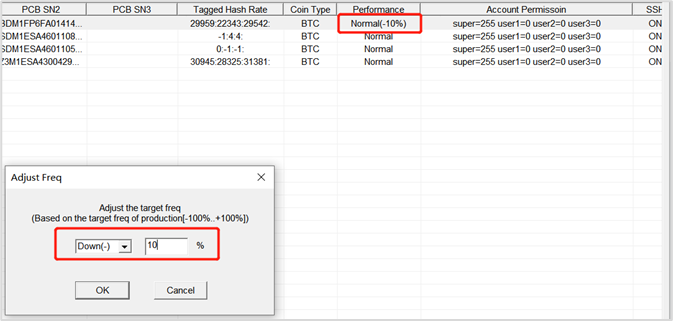
Figure 3-2
4. In WhatsMinerTool, How to Overclock by Configuring Power Adjustment?
When you adjust power of a miner according to an actual situation, there are three modes you can select, including Reset setting, Normal mode, and Fast mode. You can select an appropriate mode as needed.
Step 1 Select an IP address of a miner you want to adjust its power.
You can also select multiple IP addresses of multiple miners.
Step 2 Click Remote Ctrl, click Performance, click Adjust Power, and then click OK.

Figure 4-1
Step 3 After a dialog box pops up, you can select an appropriate mode and configure a specific power value and percentage value, and then click OK.
Reset setting: When you select this mode, the power of the miner can be reset and restored to startup power without restarting.
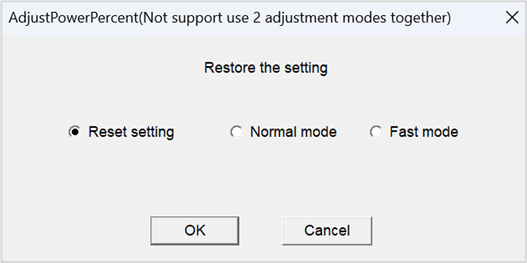
Figure 4-2
Normal mode: When you select this mode and configure a specific power value, the power of the miner can quickly reach the set power in an optimal state. However, frequency search time is relatively long.
Note: The power value can be a specific numerical value. For example, if you want the power of your M63S++to reach 9800 W, you can fill in 9800 in "Power Value W". After a period of time, when the power of M63S++ reaches 9800 W, it belongs to overclocking operation.
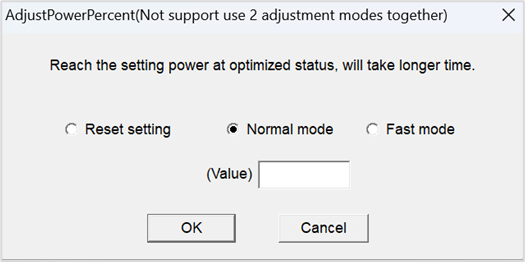
Figure 4-3
Fast mode: When you select this mode and configure a specific percentage value, the power of the miner can quickly reach the set power. However, power consumption will be higher.
Note: When an input value is 100, it belongs to normal mode operation. When the input value is less than 100, it belongs to underoverclocking operation. When the input value is greater than 100, it belongs to overclocking operation. The increase or decrease is in percentage form rather than specific power values.
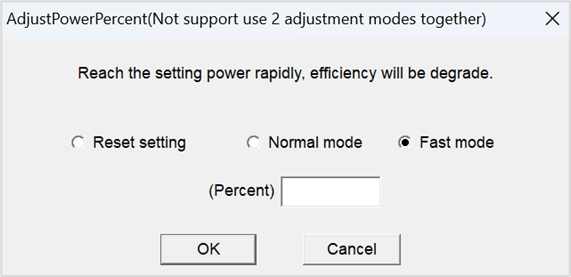
Figure 4-4
5. In WhatsMinerTool, How to Overclock by Switching Performance Mode?
Step 1 Select an IP address of a miner you want to change its power mode.
You can also select multiple IP addresses of multiple miners.
Step 2 Click Remote Ctrl, click Performance, click Performance Mode, and then click OK.

Figure 5-1
Step 3 After a dialogue box pops up, select High, Normal, or Low to change the performance mode of the miner, and then click OK to switch the performance mode of the miner.
After selecting High performance mode, the miner can operate at a higher frequency and efficiency, significantly improving its hashrate, but at the same time, it can also cause an increase in energy consumption.
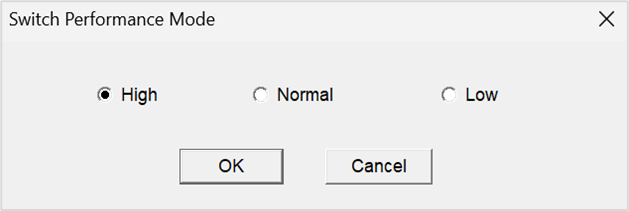
Figure 5-2
 Yes
Yes No
No Feedback
- 1WhatsMinerTool_Operation Guide16K+
- 2WhatsMiner Hydro-Cooling Miner_Operation Guide12K+
- 3WhatsMiner Air Cooling Miner_Operation Guide12K+
- 4WhatsMiner API_User's Manual9K+
- 5WhatsMiner Immersion Cooling Miner_Operation Guide7K+
- 6WhatsMinerTool: Performance, Power & Remote Functions Q&A7K+
- 7WhatsMinerTool Overclocking Guide7K+
- 8Simple introduction to quick connectors for hydro-cooling miners6K+
- 9Overclocking Eligibility & Performance Impact Q&A5K+
- 10WhatsMiner Hydro-Cooling Series Installation & Removal Guide4K+