
 whatsminer
 2026.06.12
 1K+
1K+ 0
0

1. What new features have been added to the pool configuration interface?
Added a function of locking Worker suffix, which allows you to retain the suffix you previously set, making the operation more convenient.
For specific instructions on how to configure Pool, please refer to: WhatsMinerTool: Firmware Update, SN Acquisition & Related Configuration Q&A

Figure 1-1
Key interface buttons are summarized as follows:
Click Fixed Pools Input, and then a pool address you entered will be locked. When configuring the same pool for other miners, you do not need to enter the locked pool address again.
Click Set Only Pool to only configure the pool, while locking the configuration of the worker, the suffix form, the password, the coin type and other functions.
Click Fixed Suffix to lock Worker’s suffix. When you modify "Pool" and "Worker", the Worker’s suffix will not change, that is, a suffix you previously set will be retained.
2. What new features have been updated on the main interface in the latest version of WhatsMinerTool?
In the latest version of WhatsMinerTool, two new features have been updated, including Information Replication and Customer SN Customization. The specific operation steps and introduction are as follows.
After downloading WhatsMinerTool, double-click to enter a main interface.
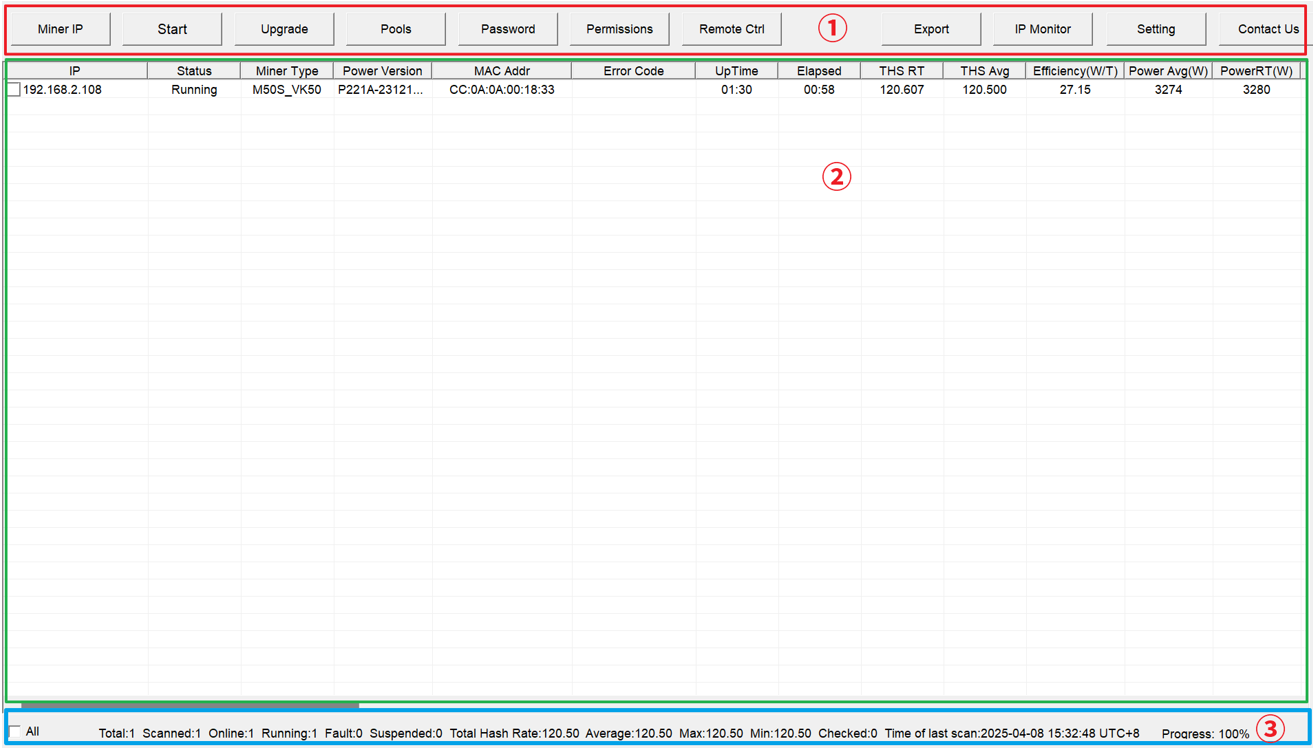
Figure 2-1
Among them, ① represents a function selection area, ② represents a miner list area, and ③ represents a status bar.
In the miner list area, you can view detailed information on up to 8 hashboards, including:
Type of hashboard
Operating frequency
Real time hashrate
Number of chips
In addition, the miner list area also supports the following convenient functions:
Information Replication
The miner SN, power SN, MAC address, and PCBSN support one click copying. When one of the multiple miners fails, the miner SN, power SN, PCBSN or MAC address related to it can be quickly sent to our after-sales team through a replication function.
Customer SN Customization
When accessories of a miner are replaced, its original SN will not be displayed in WhatsMinerTool. This feature allows you to customize the miner SN as needed, so that in the event that the original SN disappears, you can quickly locate the target miner, and also manage the multiple miners more flexibly.
Note: You can not only customize SN of a single miner, but also support batch customization of SN for multiple miners.
When you need to customize SN of the miner, you can follow steps below.
Step 1: After selecting one or more miners for which you want to customize SN, drag the main interface to the right until Customer SN column appears, and then right-click on the blank space below the Customer SN column.
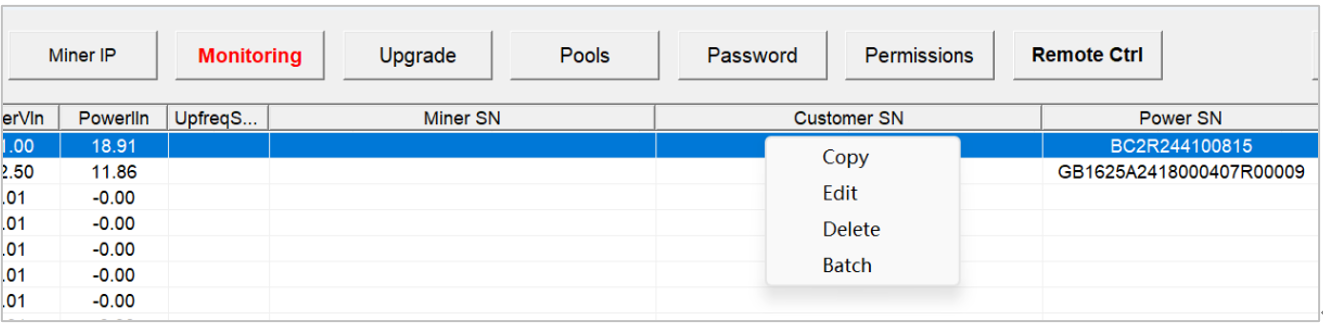
Figure 2-2
Step 2: Click Copy, Edit, Delete or Batch as needed to perform corresponding operations.
Copy: Click Copy to copy the set customer SN.
Edit: Click Edit, fill in your customer SN in a pop-up dialog box, and then click OK to complete setting of customer SN.
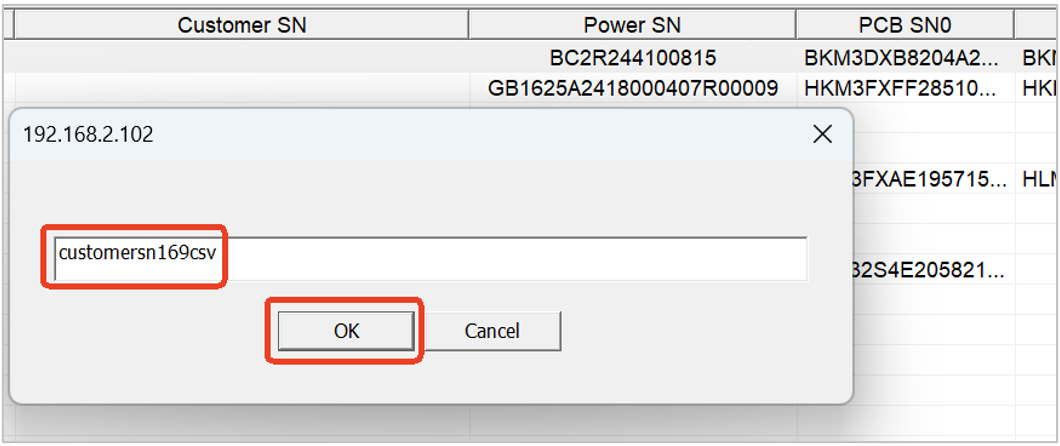
Figure 2-3
Delete: Click Delete to delete the set customer SN.
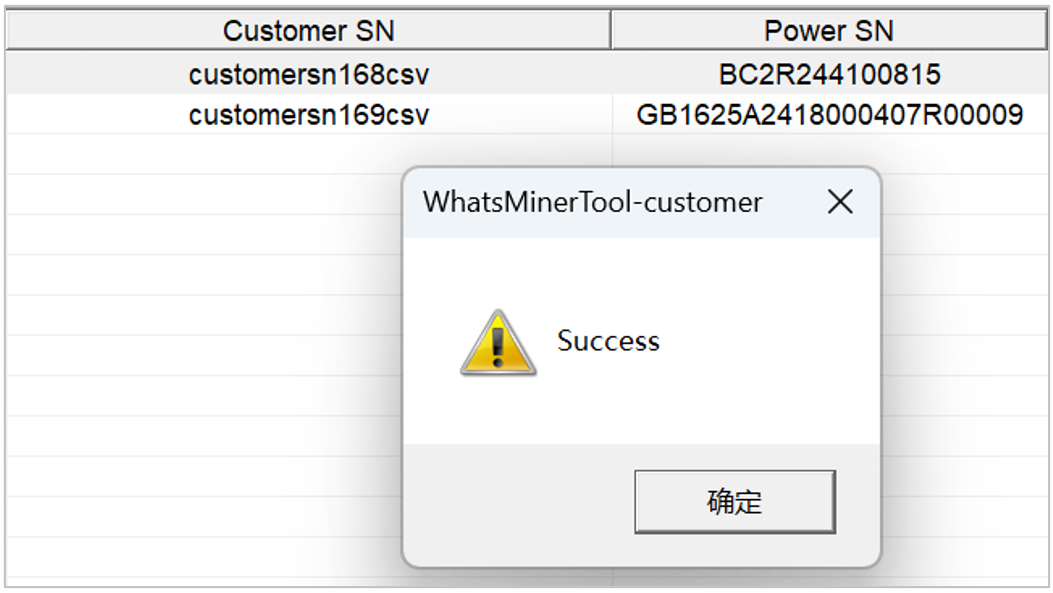
Figure 2-4
Batch: Click Batch to perform corresponding operations in a pop-up dialog box.
Import File: Click Import File to import SN files, supported .CSV and .TXT format. In an import file, it is necessary to clearly write MAC addresses and customer SNs of miners you want to perform a custom SN operation on, as shown in the following figure.
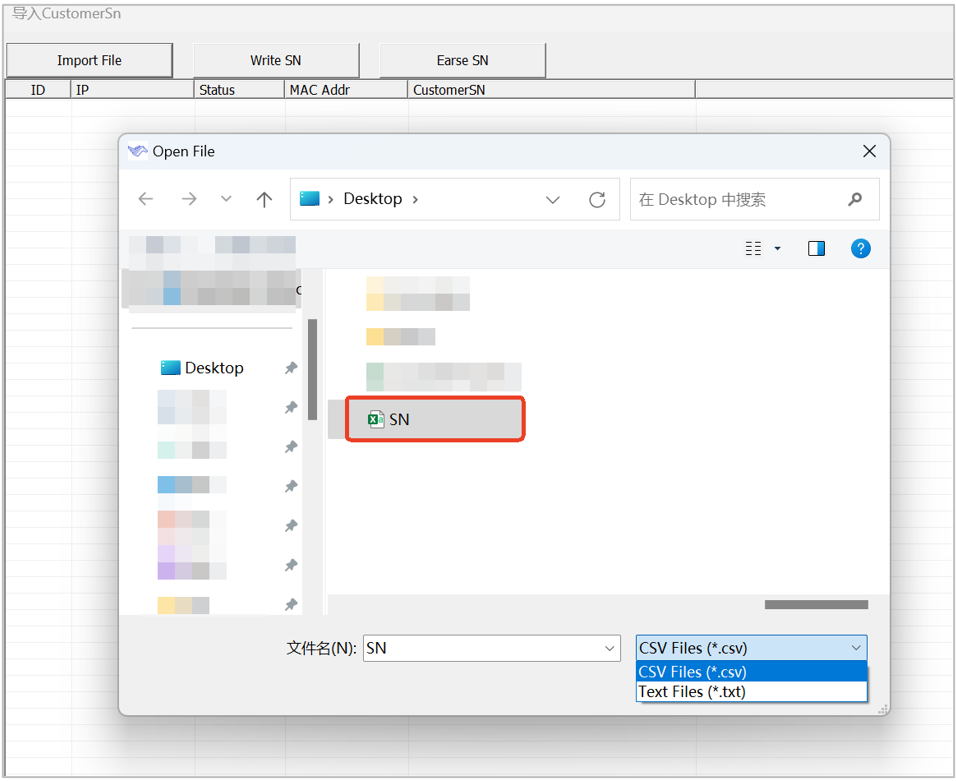
Figure 2-5
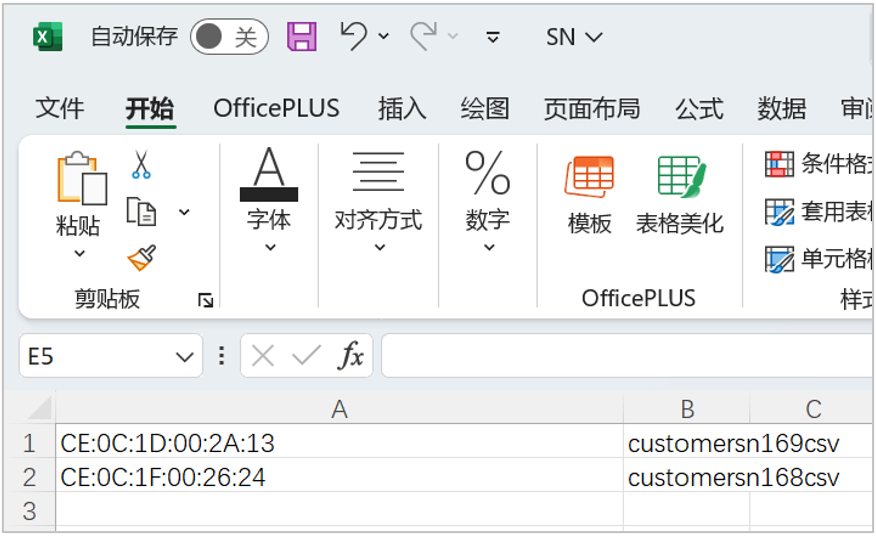
Figure 2-6
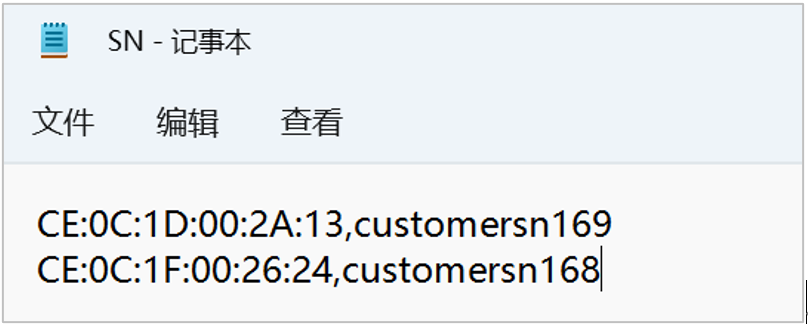
Figure 2-7
Write SN: Click Write SN, and then information in the SN file will be automatically imported and displayed onto a page. After waiting for a few seconds, the page will automatically refresh, and customer SNs will be displayed under Customer SN.
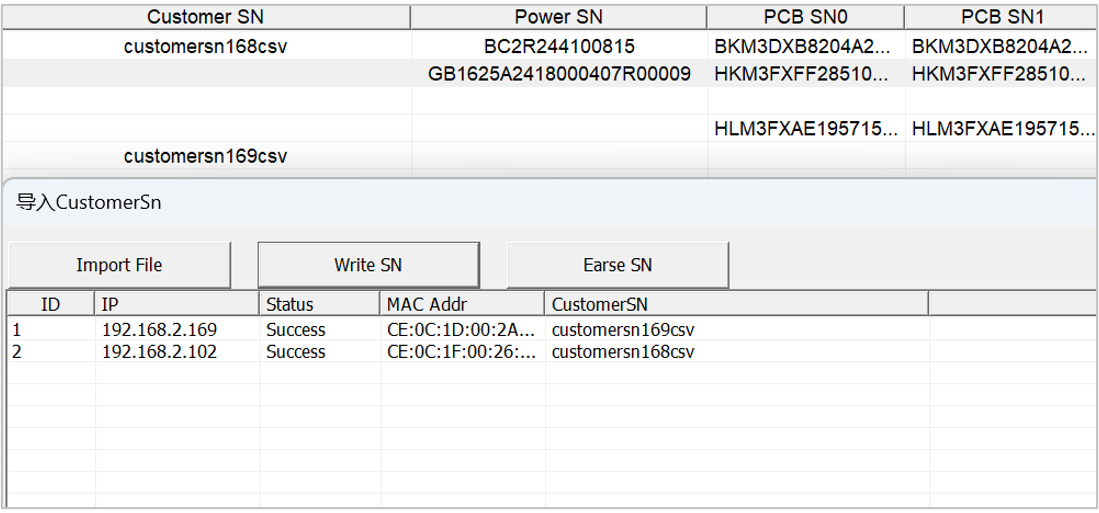
Figure 2-8
Erase SN: Click Erase SN. After waiting for a few seconds, the customer SNs will automatically disappear after the page refreshes.
3. What new features have been added to the remote control module in the latest version of WhatsMinerTool?
Added the function of Fast Hash, details are as follows.
Normally, during a frequency search phase, a miner’s hashrate may be in a low state before reaching its final level. If you want to quickly increase the miner’s hashrate to 80% of final hashrate in an early stage of frequency search, you can enable a fast hash function. It should be noted that this feature is not applicable to all models, and there are differences in the percentage of hashrate that different models can achieve during the frequency search phase.
Step 1 Select an IP address of a miner you want to enable a fast hash function.
You can also select multiple IP addresses of multiple miners.
Step 2 Click Remote Ctrl, click Fast Hash, and then click OK.

Figure 3-1
Step 3 When a Fast Hash dialog box pops up, click On, and then click OK.
Note:For VG/VH/VJ version, this feature is not supported.
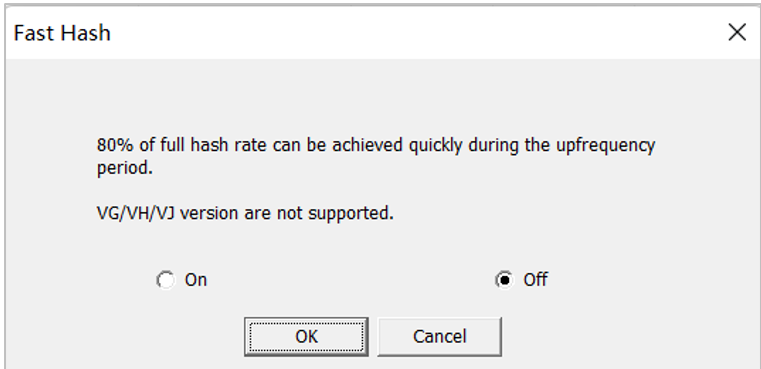
Figure 3-2
 Yes
Yes No
No Feedback
- 1WhatsMinerTool_Operation Guide12K+
- 2WhatsMiner Air Cooling Miner_Operation Guide9K+
- 3WhatsMiner Hydro-Cooling Miner_Operation Guide9K+
- 4WhatsMiner API_User's Manual7K+
- 5WhatsMiner Immersion Cooling Miner_Operation Guide6K+
- 6WhatsMinerTool: Performance, Power & Remote Functions Q&A5K+
- 7WhatsMinerTool Overclocking Guide5K+
- 8Simple introduction to quick connectors for hydro-cooling miners5K+
- 9WhatsMiner Hydro-Cooling Series Installation & Removal Guide4K+
- 10Overclocking Eligibility & Performance Impact Q&A3K+